Discontinuing medications (new prescriber)
Note: This information applies to the new prescriber (see New prescriber).
If the video does not play, to copy the web address and then paste it into a web browser outside the Wolf EMR data centre.
When you instruct a patient to stop taking a medication, you should always discontinue the prescription in the patient’s EMR record. This way, the patient’s active medications list accurately reflects what medications the patient is currently taking. Also, in keeping a patient’s active medications list accurate, you will not receive interaction warnings against medications the patient is no longer taking.
When you discontinue a medication, you have the choice to print a discontinuation report, which can be sent to the pharmacy.
Note: When a medication is discontinued, it can still be referenced or refilled. Discontinued medications are never permanently deleted from a patient’s record.
Steps
| 1. | Open the Medications and Allergies window: On any window related to the patient (including a SOAP note, and the medical summary), right-click and choose View Medication List. |
| 2. | Perform one of the following actions: |
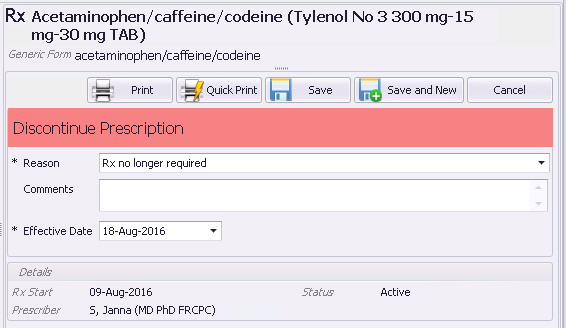
To discontinue only one medication, in the Active Medications list, click the medication you want to discontinue, and then click Discontinue  . In the right pane, the EMR displays the Discontinue Prescription area.
To discontinue several medications at once:
| a) | Above the Active Medications list, select the Multiple Rx Actions check box and then, in the Active Medications list, select the check boxes beside the medications you want to discontinue. |
| b) | Click Discontinue . In the right pane, the Discontinue Prescription area displays. |
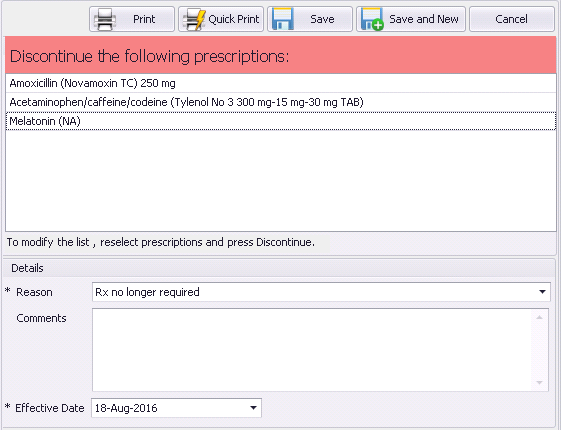
| 3. | In the Reason list, select your reason for discontinuing the medication. If none of the options are appropriate, select Other and then, in the Comments field, enter your reason. |
Tip: The Reason defaults to Rx no longer required. You can modify the default reason if required. See Modifying prescription window defaults (new prescriber).
| 4. | To add additional notes regarding your reason for discontinuing the medication, in the Comments area, type your notes. |
| 5. | To change the discontinue date (for example, if you want the medication to be discontinued next week), in the Effective Date field, enter a date, or click the down arrow to select a date from a calendar. |
| 6. | Perform one of the following actions: |
To discontinue the selected medication(s), click Save  .
.
To discontinue the selected medication(s) and prescribe or record another medication, click Save and New  .
.
To discontinue the selected medication(s), and print a discontinuation report from the printer of your choice, click Print  .
.
To discontinue the selected medication(s), and print a discontinuation report from your default printer, click Quick Print  .
.
In most cases the EMR removes the prescription(s) from the Active Medications list and displays the medication in the Inactive Medications list.
© 2018 