Register for self-service password reset
We strongly encourage all users to register for the Wolf EMR self-serve password reset system. Once registered, this enables you to unlock your Wolf EMR data centre account and easily reset your own Wolf EMR data centre password if you ever forget it and get locked out (see Help! I forgot my password).
The registration process consists of answering two standard questions and one customized question, which are then saved in our self-service password database. Once enrolled, you can then reset your password or unlock your account if you correctly answer the three questions (see Resetting your own Wolf EMR data centre password).
Steps
| 1. | If you are a new Wolf EMR user, the enrollment wizard should open automatically the first time that you log on the Wolf EMR data centre. |
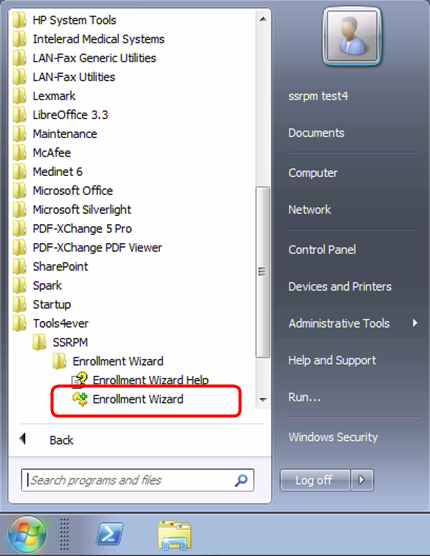
Otherwise, once connected to the Wolf EMR data centre, click Start > All Programs > Tools4ever > SSRPM > Enrollment Wizard. Or, search for SSRPM.
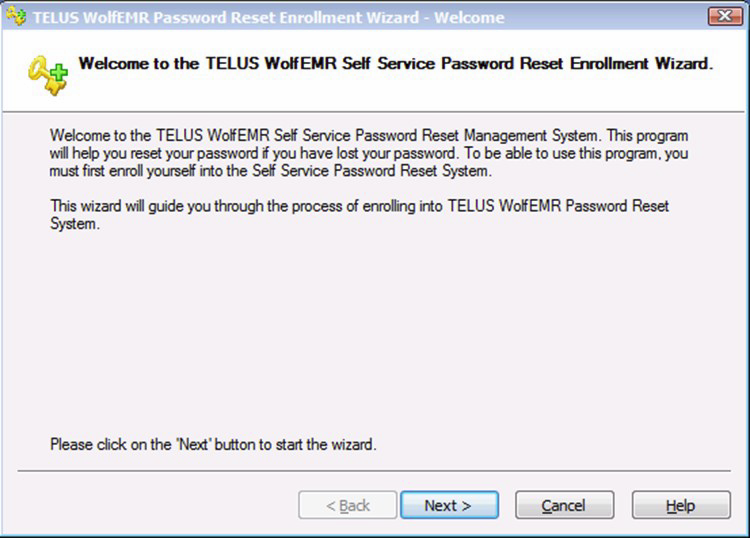
| 2. | In the Welcome window, click Next. |
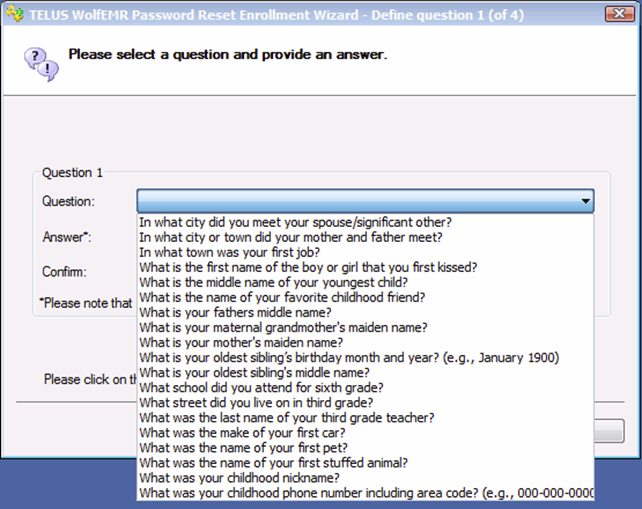
| 3. | Select and answer two standardized questions. After each question, click Next. |
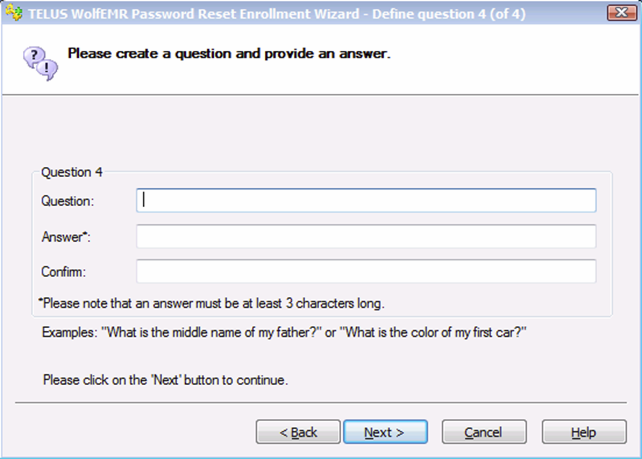
| 4. | After you selected the first two questions, you are prompted to type your own question and provide the answer. Fill out both the Question and Answer fields, and then click Next. |
| 5. | Once you are done, click Finish. You see a confirmation of your registration. |
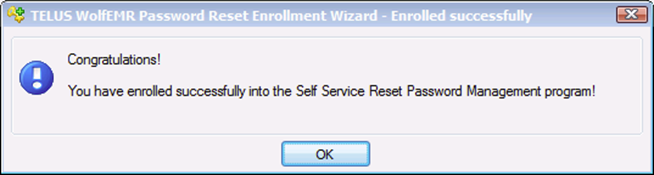
You can now reset your own Wolf EMR data centre password, if needed (see Resetting your own Wolf EMR data centre password).
© 2018 