Giving other people access to a patient’s data
Patients can grant family members and other relations access to their patient portal. For example, an elderly patient with mild dementia can allow patient portal access to her daughter. Or, a young adult with a chronic condition can allow patient portal access to his mother.
The following steps describe how to grant a mother access to view her son’s patient portal information.
Steps
|
1.
|
In the Patient Maintenance window, enter the mother into your Wolf EMR as a patient (if she is not already a patient. Ensure you enter the mother’s email address and date of birth in the Name/Addr/Phone tab, in the Communication area. |
See “Patient Maintenance” in the Wolf EMR online help or user guide.
|
2.
|
Link the mother and her son using patient relations: |
|
a)
|
Open the Patient Maintenance window for either the mother or son. |
|
b)
|
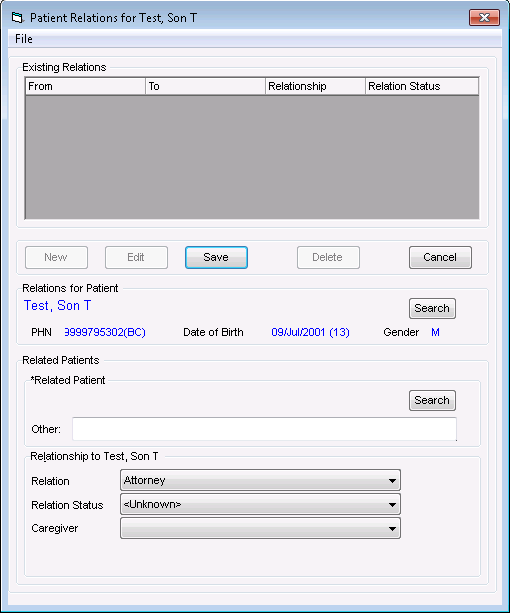
On the Name/Addr/Phone tab, in the Relationship area, click Add/Edit. The Patient Relations for <patient name> window opens. |
|
c)
|
In the Related Patient area, click Search. |
|
d)
|
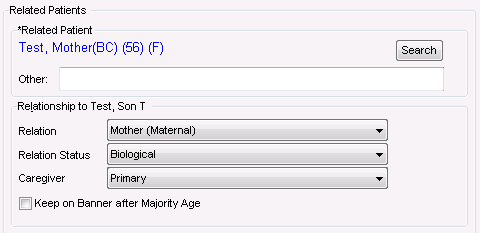
Search for and select the individual you want to create a relation to. The EMR displays the selected individual’s name in the Related Patient area. |
|
e)
|
In the Relation list, click the relationship the selected individual has to the patient. |
|
f)
|
In the Relation Status list, click the appropriate status for the relationship. |
|
g)
|
If the selected individual is the primary caregiver for the patient, in the Caregiver list, click Primary. |
|
h)
|
Click Save. The EMR displays the relation in the Existing Relations area at the top of the window. |
|
3.
|
Set up mother with access to her son’s patient portal: |
|
a)
|
Open the Patient Maintenance window for the mother. |
|
b)
|
Click the Other Demographics tab. |
|
c)
|
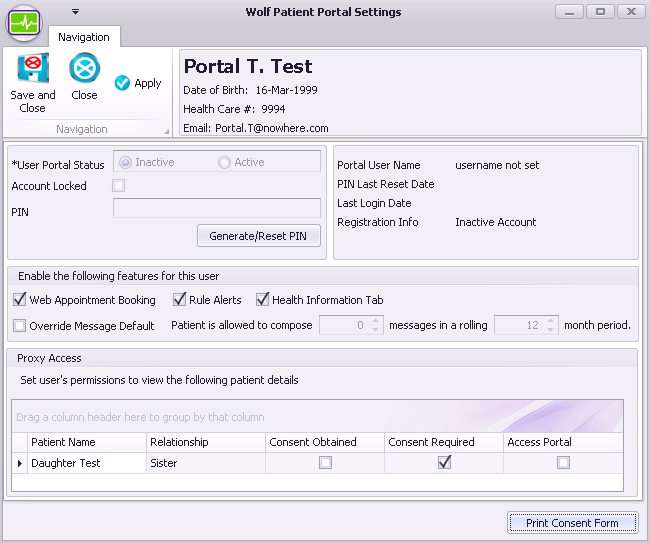
In the patient portal area, click Settings. The EMR displays the Wolf patient portal Settings window, with mother’s family members and other linked relations listed in the Proxy Access area. |
The Consent Required check box is selected if the patient is within the “Age of Consent”. For patients younger than the age of consent, this check box is not selected as the patient is not required to sign a consent form.
|
d)
|
In the Proxy Access area, click the son’s name. |
|
e)
|
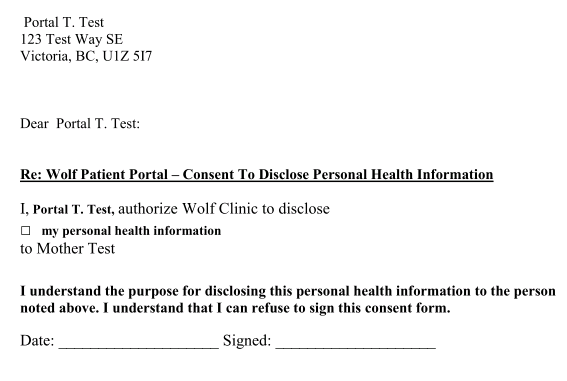
Click Print Consent Form. The EMR opens a PDF Consent Form in PDF-XChange Viewer. The body of the form contains a message similar to the following example: |
The patient can sign the consent form out of office if the form is appropriately witnessed. For example, if the patient is traveling, or is away at school.
Children younger than the age of consent do not have to sign a consent form for their parents or legal guardians, as consent is implied in this case. However, once the child reaches the age of consent, the child must then sign a consent form to enable their parent(s) to continue to access their patient portal.
The “Age of consent” is determined and configured by your clinic. See Configuring patient portal registration rules.
|
f)
|
To print the consent form, in the PDF-XChange Viewer window, click Print , or press Ctrl+ P. |
|
g)
|
Have the son sign the consent form. To keep the signed consent form on file, scan the signed consent form, and then import it into the Documents area of the son’s medical summary. |
|
h)
|
Beside the son’s name in the Proxy Access area of the Wolf patient portal Settings window, select the Consent Obtained and the Access Portal check boxes. |
|
i)
|
If the other is not currently signed up for the patient portal herself, click Generate/Reset PIN. The EMR opens a PDF letter in the PDF-XChange Viewer. |
|
j)
|
Print and hand the letter to the mother. |
 .
.
 , or press Ctrl+ P.