Configuring patient messaging
If your clinic sends messages to individual patients via the patient portal, you can choose if patients can send messages back to the clinic, how many message they can send, and the length in characters of their messages.
You can configure these settings for the entire clinic or per provider.
You can also temporarily disable your patients’ ability to send messages, for example, if your clinic is closed for a week.
You can also restrict how many messages a specific patient can send (see Registering patients for the patient portal).
Note: If you prevent a patient from sending messages to a provider, but the patient has access to another provider’s patient data (such as their son) and this other provider does enable inbound patient messages, this patient will still be able to send messages to their provider.
Steps
| 1. | On the Wolf EMR Home page, click the Maintenance tab. |
| 2. | In the Patient Portal area, click Configure Web Content  . . |
| 3. | In the left pane of the Patient Portal Content and Configuration Form window, click Messaging Configuration > Messaging Settings. |
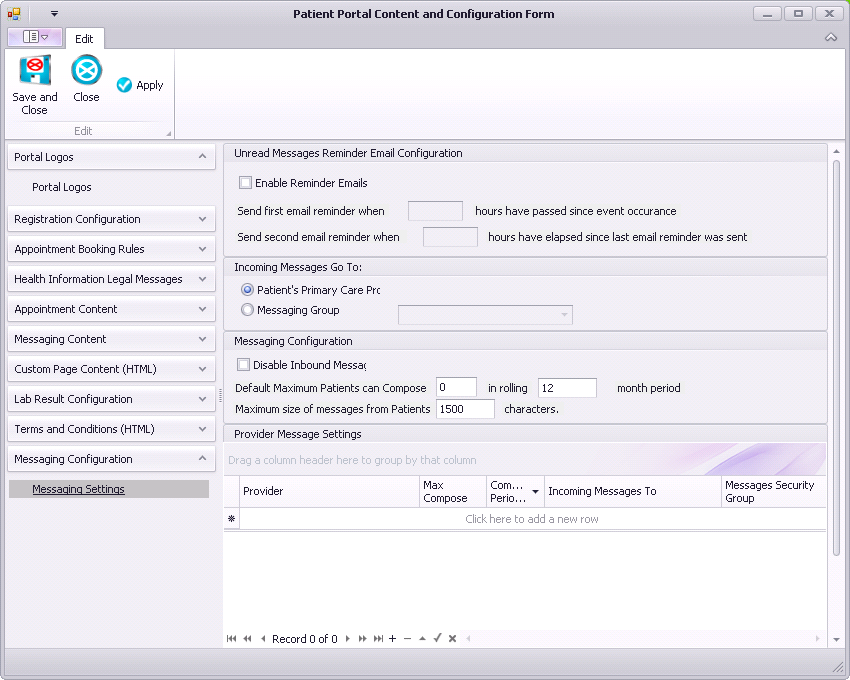
| 4. | Use the following table to enter information in the Messaging Configuration area: |
| Field | Description |
|---|---|
|
Enable Reminder Emails |
Select to enable sending reminder emails. |
|
Send first/second email reminder… |
Enter how long after the initial email to send the first and second reminder. We recommend 25 hours. |
|
Incoming Messages Go To |
Select the clinic default for who will receive incoming messages from patients. |
|
Disable Inbound Messages |
Select to prevent all patients from sending messages to the clinic. |
|
Default Maximum Patients can Compose |
To restrict the number of messages patients can send, type the maximum number of messages each patient can send over a specified number of months. To enabled unlimited messages, type 999. The maximum number of messages can also be customized for each patient. See Registering patients for the patient portal. |
|
Maximum size of messages from Patients |
To restrict the length of messages patients can send, type the maximum number of characters. |
|
Provider Messaging Settings |
To specify the messaging settings for a specific provider, select the provider and choose the settings. |
| 5. | Perform one of the following actions: |
To apply your changes to the patient portal and leave the window open, click Apply .
.
To apply your changes to the patient portal and close the window, click Save and Close .
.
To close the window without saving your changes, click Close .
.
© 2018 